

See What You’d Look Like with Blonde Hair
Upload a photo and the blonde hair filter recolors your own hair — golden, platinum, ash, honey, dirty blonde or highlights — while your cut, length and face stay the same.
Photos are processed privately and deleted automatically.
Blonde Hair Filter Examples: Before and After
Examples show real results from this tool on AI-generated portraits.
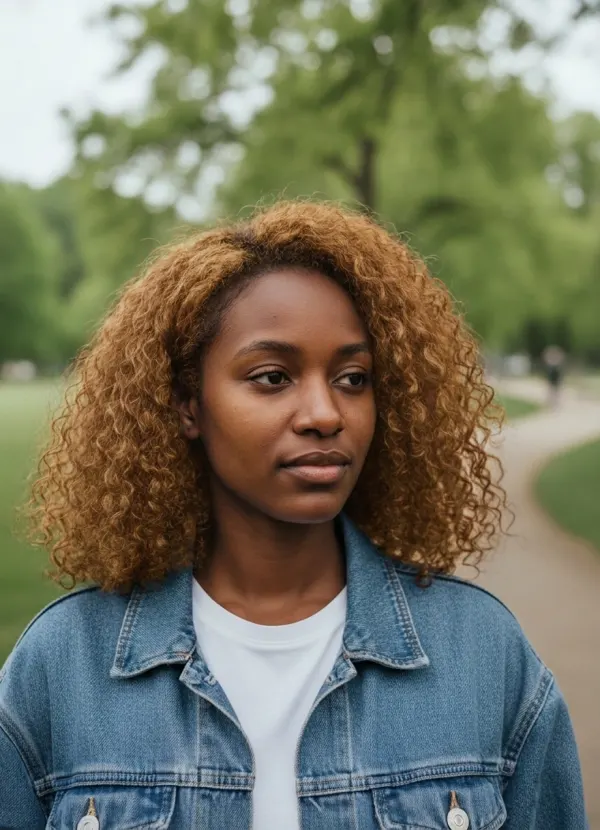
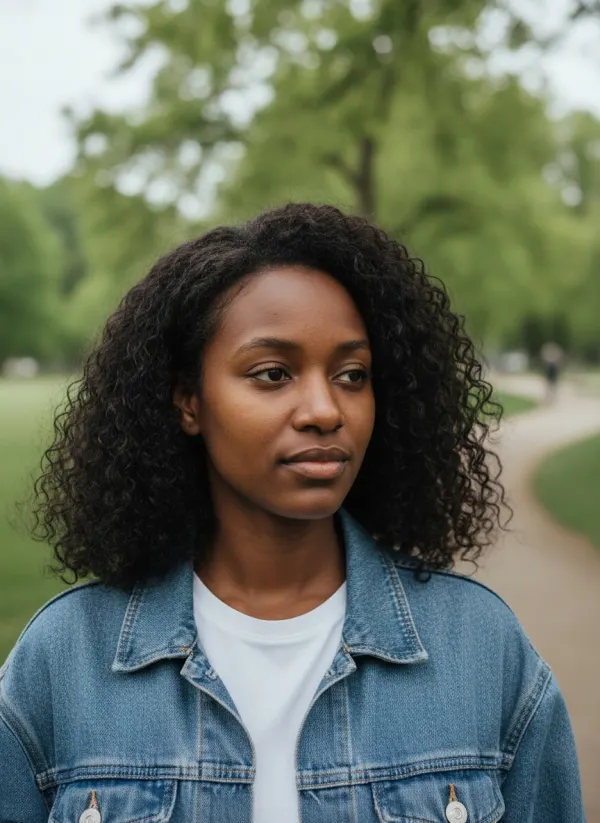 BeforeAfter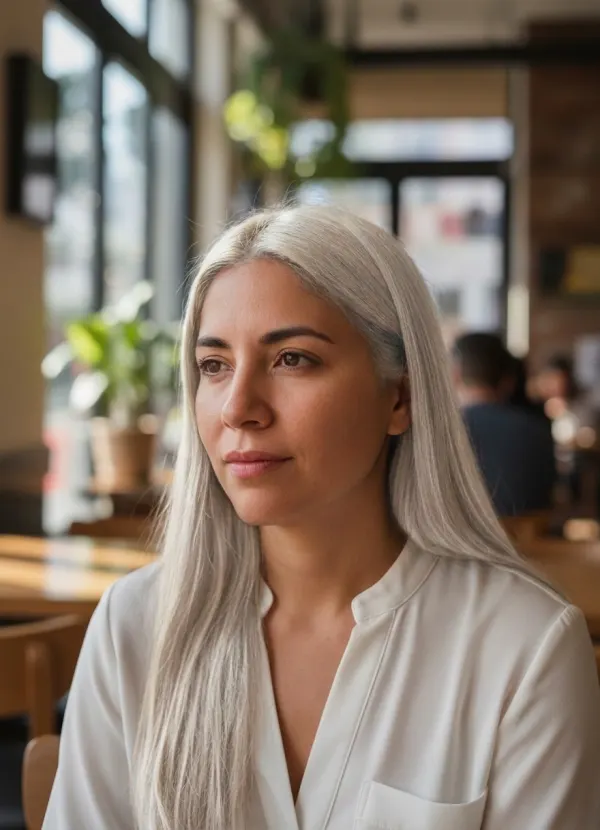
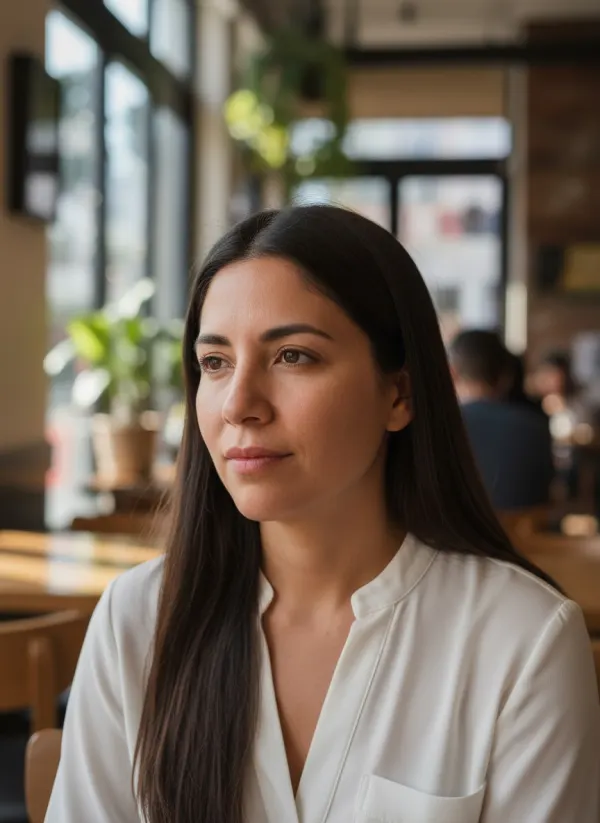 BeforeAfter
 BeforeAfter
Try Blonde Hair on Your Photo
Only the color changes. Your haircut, length, parting and texture stay exactly as they are, and so do your eyebrows, skin and expression, so the preview looks like you after a salon visit rather than you in a wig.
Golden Blonde
Warm and sunny, with a little depth at the roots.
Platinum Blonde
Icy and almost white — the biggest change for dark hair.
Ash Blonde
Cool and smoky, with no brassy yellow tones.
Honey Blonde
Rich amber and caramel tones, deeper than golden.
Dirty Blonde
A dark, natural blonde with light-brown undertones.
Blonde Highlights
Fine golden streaks woven through your current color.
What Would I Look Like with Blonde Hair?
Upload a clear photo, pick a shade and you will see your own hair recolored in seconds. How well blonde works depends on your skin undertone, eye color and eyebrows — a warm golden shade and a cool ash shade can look surprisingly different on the same face, so it is worth trying both.
Planning a new cut at the same time? Add a fringe with the bangs filter.
Preview Blonde Hair Before You Dye It
Hair color is easy to change on a screen and slow to change in real life — especially going lighter. A preview on your own photo helps you decide before the bleach comes out.
Before a Salon Appointment
Choose between golden and ash — or full blonde and highlights — before you book.
Before Bleaching Dark Hair
Going blonde from dark hair takes several sessions; see the end result first.
Show Your Colorist
A preview on your own face explains the shade better than a swatch.
How the Blonde Hair Filter Works
- 01
Upload a Clear Photo
Use a well-lit photo where your hair is visible. JPEG, PNG or WebP up to 10 MB.
- 02
Choose a Blonde Shade
Golden, platinum, ash, honey, dirty blonde or highlights — or another color under More colors.
- 03
Generate Your Preview
Your hair is recolored with natural variation; the cut and your face stay the same.
- 04
Compare and Download
Slide between before and after and save the shade you want to take to the salon.
Blonde Shades You Can Preview
Warm shades — golden and honey — add sunshine and suit warmer skin undertones. Cool shades — platinum and ash — neutralize yellow and read as more editorial. Dirty blonde is the gentlest step from brown hair, and highlights keep your own color underneath for the most natural change.
The same tool also previews black, red and gray hair under “More colors”. Gray changes the color only: your face and apparent age stay exactly as they are.
Tips for a More Realistic Hair Color Preview
- Make sure most of your hair is visible — no hat, hood or scarf.
- Use daylight or neutral white light.
- Avoid strongly colored light such as neon or sunset glow; it tints the result.
- Pick a sharp, high-resolution photo so individual strands keep their detail.
- Face the camera so both sides of your hair show.
Related Hair Preview Tools
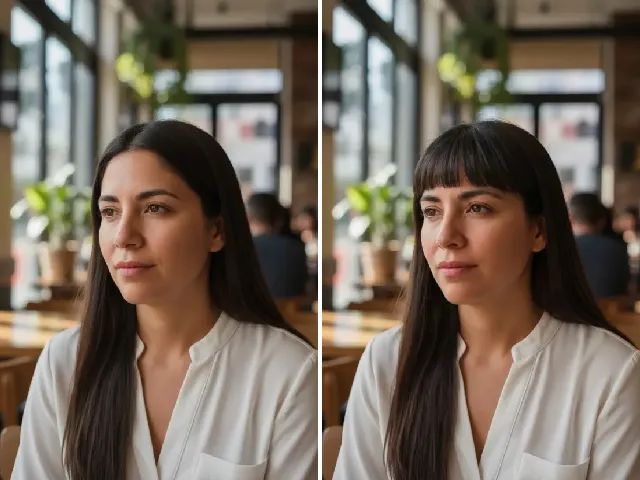 BeforeAfter
Bangs Filter
Changing color and cut together? Add curtain or straight bangs.
Try it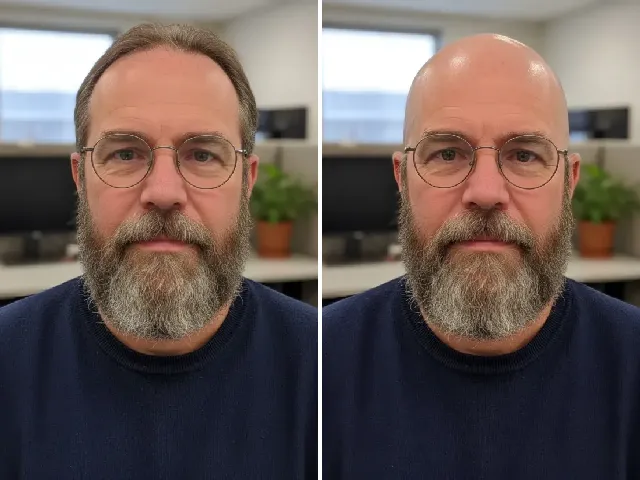 BeforeAfter
AI Bald Filter
Curious about the opposite extreme? See yourself with a buzz cut.
Try it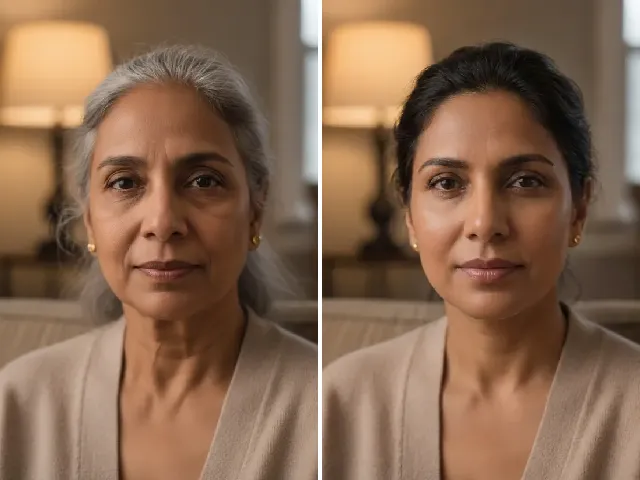 BeforeAfter
AI Age Progression
See your new hair color at 30, 60 or 90.
Try it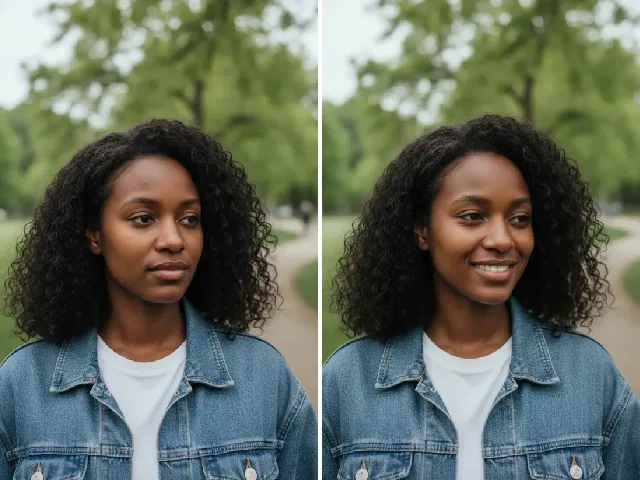 BeforeAfter
AI Smile Filter
Show off the new shade with a natural smile.
Try itFrequently Asked Questions
Is the blonde hair filter free?
You can try it once a day without an account. A free account adds bonus credits; each result uses two credits.
What would I look like with blonde hair?
Upload a clear photo and pick a shade: you will see your own hair in that blonde, with your haircut and face unchanged.
Can I try platinum blonde?
Yes. Platinum gives an icy, near-white blonde — the most dramatic change, especially on dark hair.
Can I preview blonde highlights?
Yes. Highlights adds fine golden streaks and keeps your current color between them.
Can I try different blonde shades?
Yes: golden, platinum, ash, honey, dirty blonde and highlights. Generate several from the same photo and compare them.
Will the tool change my face?
No. Only the hair color changes; your features, skin, eyebrows and expression are kept.
Does it work on dark hair?
Yes. It previews the finished color, however dark your hair is now — in real life, going blonde from dark hair usually takes several salon sessions.
What photo gives the best result?
A sharp photo in daylight or neutral light with most of your hair visible. It is used only for your preview and deleted automatically.