

Try On Piercings Virtually on Your Photo
Wondering how a nose ring or septum would look on you? Upload a photo, pick a piercing, finish and side, and the piercing filter places it realistically on your face.
Photos are processed privately and deleted automatically.
Virtual Piercing Try-On Examples
Examples show real results from this tool on AI-generated portraits.

 BeforeAfter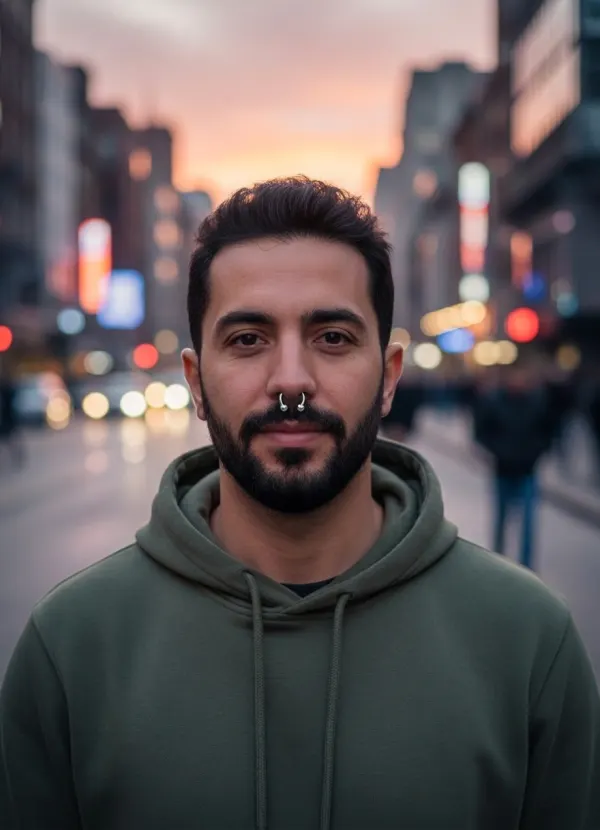
 BeforeAfter
 BeforeAfter
Preview a Piercing Before You Get One
Piercings are small, but they change a face more than people expect — and they are not something you want to undo. The virtual piercing try-on places jewelry where a real piercing sits, at a realistic size and touching the skin, while the rest of the photo stays exactly as it was.
Nose Stud
A small stud on the left or right nostril — the most popular first facial piercing.
Nose Hoop
A thin ring through the nostril that hugs the edge of the nose.
Septum
A ring through the center of the nose, sitting just under the tip.
Lip Piercing
A ring or stud on the lower lip, centered or to one side.
Eyebrow Piercing
A curved bar through the outer part of one eyebrow.
Ear Piercing
Lobe studs and a helix hoop on the visible ear.
Choose a Piercing Style and Finish
The metal changes the whole look. Generate the same piercing in each finish and slide between them to see which suits your skin tone and style.
Silver
Bright and understated; works with almost any skin tone and outfit.
Gold
Warm and eye-catching, especially on warm or deeper skin tones.
Black
A matte, graphic look that stands out on lighter skin and edgier styles.
How the Virtual Piercing Try-On Works
- 01
Upload a Clear Photo
A front-facing, well-lit photo works best. For ear piercings, make sure the ear is visible.
- 02
Choose a Piercing
Nose stud, nose hoop, septum, lip, eyebrow or ear.
- 03
Pick the Side and Finish
Choose left, right or center — as seen in your photo — and silver, gold or black.
- 04
Generate and Compare
Slide between before and after, then save the look you like.
What Would I Look Like with a Nose Piercing?
There is no rule for which side to pierce — it comes down to your face and how you part your hair. Many people pick the side they photograph best from, or the side opposite their parting so the piercing stays visible. The quickest way to decide is to try a nose ring simulator on both sides of your own photo.
If you are planning a bigger change, see how the piercing looks with a shaved head or buzz cut too.
Why Try On a Piercing First
Decide Before Visiting a Piercer
See whether a stud or a hoop suits you before booking an appointment.
Pick a Side
Compare a left and a right nose piercing on your own face.
Match Jewelry to Your Style
Try silver, gold or black against your skin tone, hair and glasses.
Tips for Realistic Piercing Placement
- Face the camera so both sides of your nose are visible.
- For ear piercings, tuck your hair behind the ear.
- Take out existing nose jewelry if you want to replace it.
- A sharp photo in soft light shows the jewelry at a realistic size.
- Left and right mean as seen in the photo — for a mirrored selfie, pick the side you see.
Related Virtual Try-On Tools
 BeforeAfter
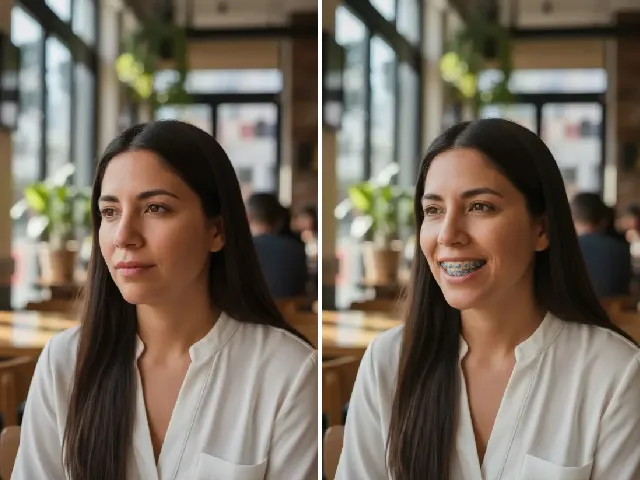
Braces Filter
Another try-on for your smile: metal, ceramic or colored braces.
Try it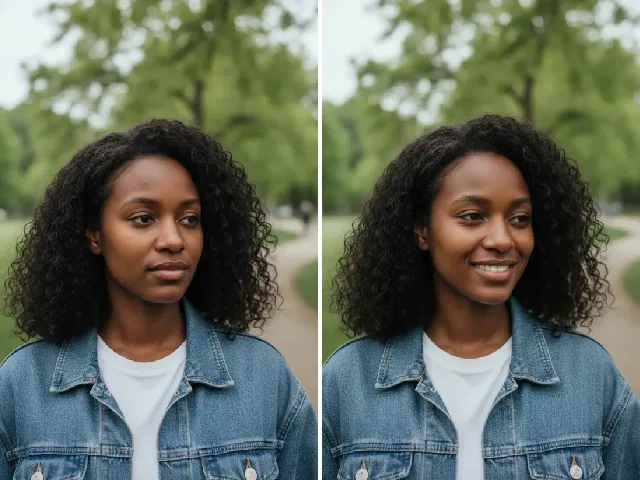 BeforeAfter
AI Smile Filter
Show off a new piercing with a natural smile.
Try it BeforeAfter
Bangs Filter
See how a fringe frames an eyebrow or nose piercing.
Try it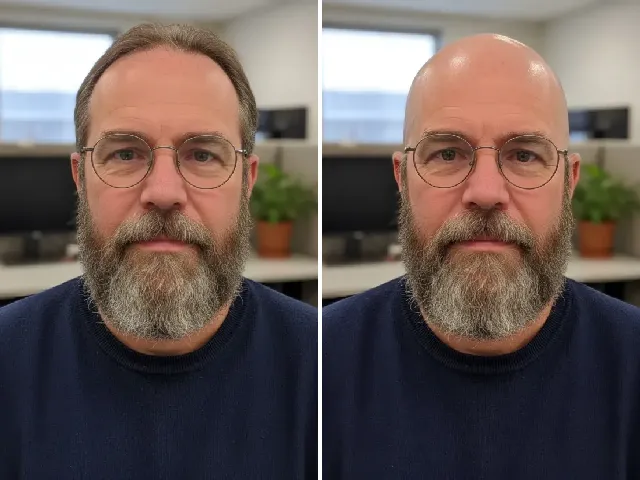 BeforeAfter
AI Bald Filter
See how an ear or nose piercing looks with a buzz cut.
Try itFrequently Asked Questions
Is the piercing filter free?
You can try it once a day without an account. A free account adds bonus credits; each result uses two credits.
Can I try a nose ring or nose stud?
Yes. Choose Nose stud for a small stud on the nostril, or Nose hoop for a thin ring, on either side.
Can I preview a septum piercing?
Yes. Choose Septum — it is always centered, so there is no side to pick.
Can I choose left or right placement?
Yes, for nose, lip, eyebrow and ear piercings. Left and right are as seen in your photo, exactly like the preview on screen.
Can I change the metal color?
Yes. Every piercing comes in silver, gold or black.
Does it work for ear piercings?
Yes, on the visible part of the ear. Tuck your hair behind your ear for the best result; if the ear isn’t visible, you’ll see a notice before you generate.
Will the rest of my face stay the same?
Yes. Only the piercing area changes; your features, skin, hair and background are kept.
What happens to my photo?
It is processed privately for your try-on and deleted automatically — after 24 hours without an account, after 30 days with one. We never use photos to train AI.