

Add a Natural Smile to Your Photo with AI
Upload a portrait and pick a smile style. The smile filter changes only the expression — your face, hair and background stay exactly as they were.
1 is barely there, 5 is a big grin.
Photos are processed privately and deleted automatically.
AI Smile Filter Examples: Before and After
Examples show real results from this tool on AI-generated portraits.
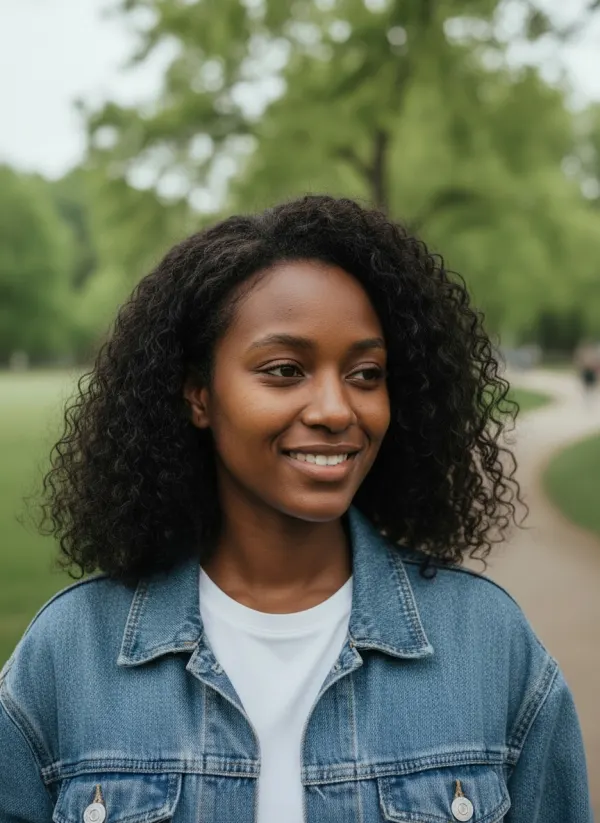
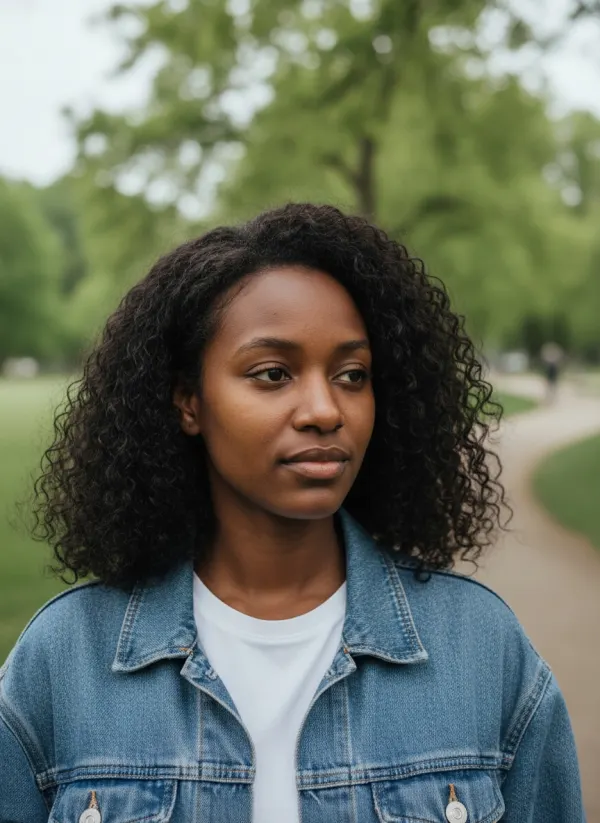 BeforeAfter
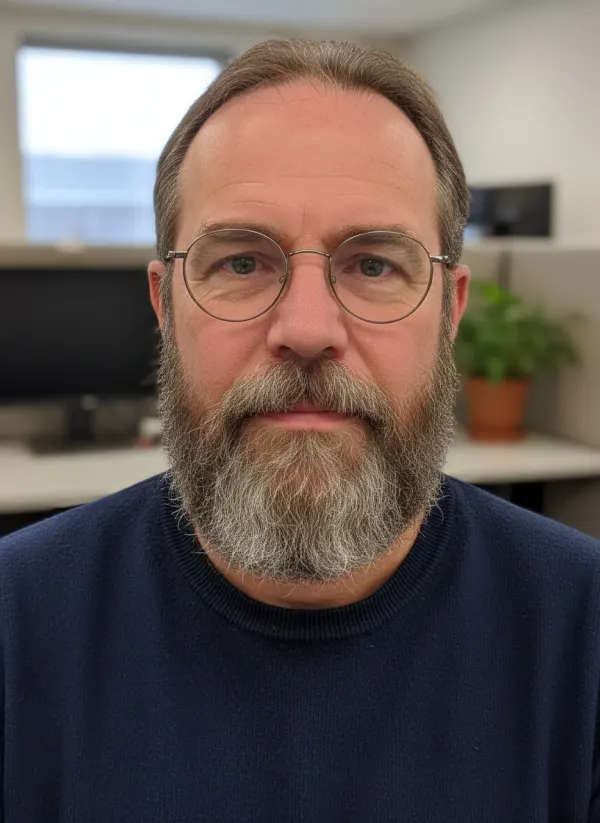 BeforeAfter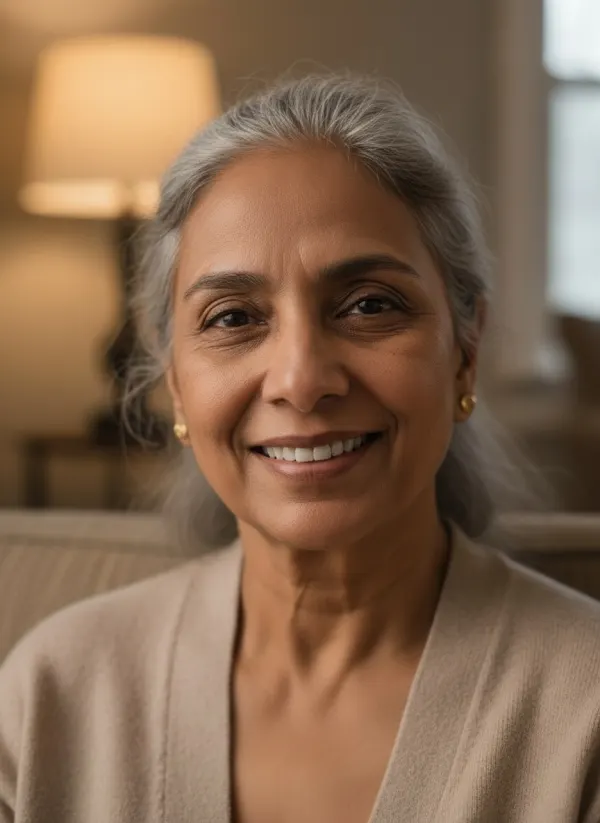
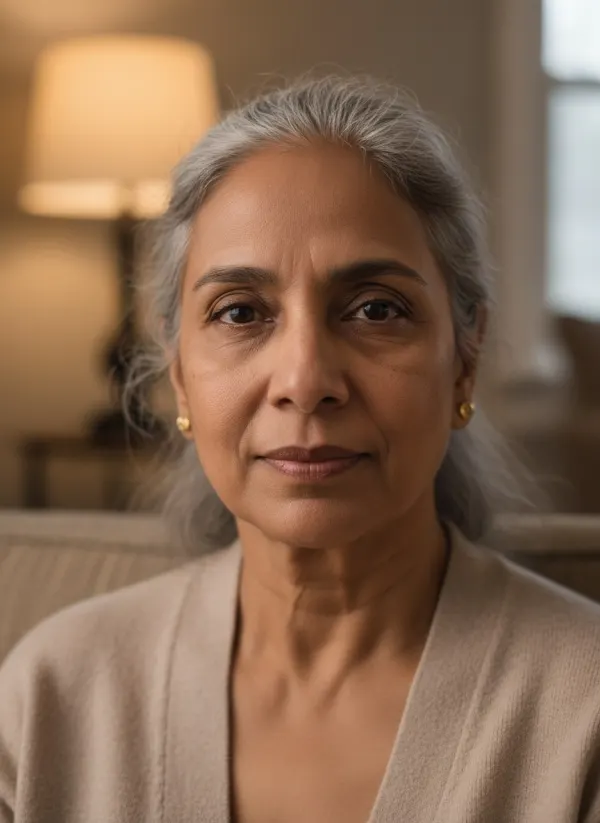 BeforeAfter
Try an AI Smile Filter That Still Looks Like You
Most smile effects stretch the mouth and stop there, which is why the result often looks like a stranger. This AI smile filter edits the expression the way a real smile works: the lip corners lift, the cheeks rise and the eyes soften a little. Nose, jawline, eye shape, skin and hair are left alone. Five styles cover the smiles people actually want:
Subtle Smile
A small lift at the corners of the mouth — the safest choice for formal photos.
Natural Smile
A relaxed, friendly smile with a hint of warmth in the eyes. The default for most photos.
Big Smile
A wide, happy grin with raised cheeks, for party and holiday pictures.
Smile with Teeth
An open smile showing the upper teeth, rebuilt to match the face and the light.
Closed-Mouth Smile
A warm smile with the lips together — good when the original mouth is closed.
Can AI Make Someone Smile in a Photo?
Yes. Modern image-editing models can change a facial expression while keeping the rest of the photo intact. The trick is restraint: a convincing smile is a small change spread across the mouth, cheeks and eyes, not a big change to the lips alone.
Start with the Natural or Subtle style and raise the intensity only if the photo is sharp and taken from the front. If you are wondering how a smile would look with braces, the braces filter adds them to an open smile.
How to Add a Smile to a Photo
- 01
Upload a Portrait
Use a clear photo where the face is visible. JPEG, PNG or WebP up to 10 MB.
- 02
Choose a Smile Style
Pick subtle, natural, big, with teeth or closed mouth.
- 03
Adjust Smile Intensity
Use the 1–5 slider: 1 is barely there, 5 is a full grin.
- 04
Generate and Compare
Drag the before/after slider, then download the result or try another style.
When a Smile Filter Is Useful
Fix a Serious Expression
Rescue a family or team photo where one person froze mid-frown, without a reshoot.
Warm Up a Profile Photo
Make a stern headshot for LinkedIn, dating or social profiles feel more approachable.
Preview a Different Expression
See which smile suits you before a photoshoot or a video call.
Improve an Old Portrait
Add a gentle smile to formal vintage portraits from a time when nobody smiled for the camera.
Tips for the Best Smile Result
- Use a photo where the face is roughly front-facing and fills at least a third of the frame.
- Soft, even light gives the most natural smile lines and teeth.
- Keep hands, microphones and hair away from the mouth.
- For the “With teeth” style, a slightly parted mouth in the original helps.
- Sunglasses are fine, but visible eyes make the smile look more genuine.
Related Tools
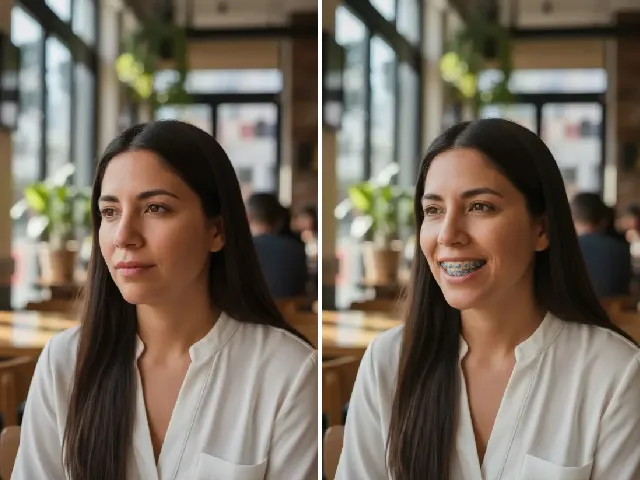 BeforeAfter
Braces Filter
Already smiling with teeth? See the same smile with metal, ceramic or colored braces.
Try it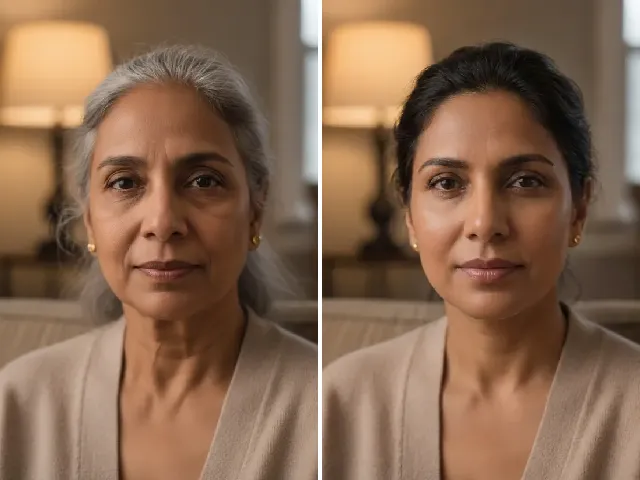 BeforeAfter
AI Age Progression
See how your smile might look at 30, 60 or 90.
Try it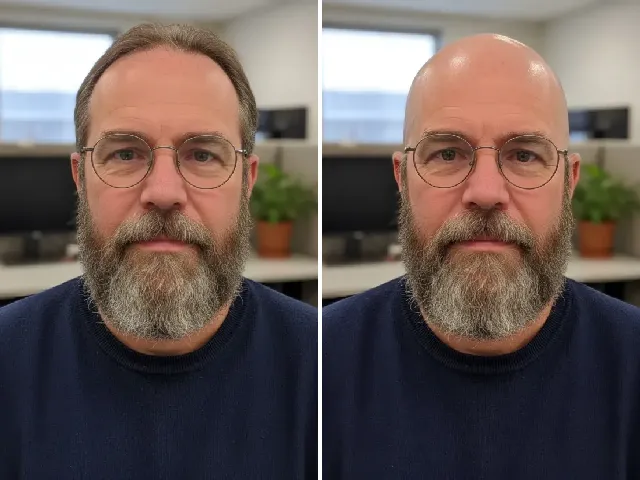 BeforeAfter
AI Bald Filter
Try a buzz cut or shaved head on the same portrait.
Try it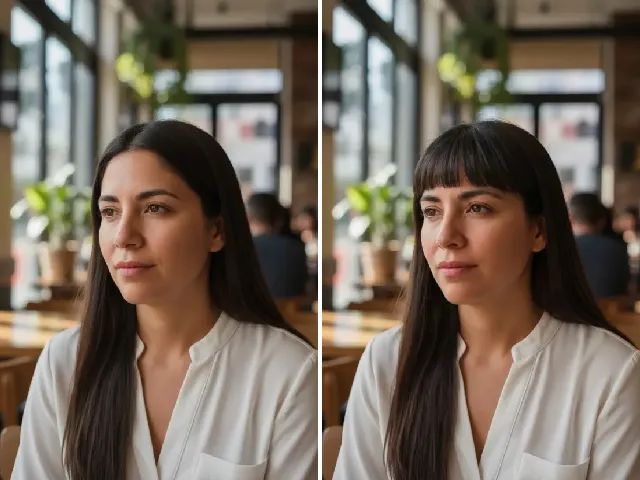 BeforeAfter
Bangs Filter
Frame a fresh smile with curtain or wispy bangs.
Try itFrequently Asked Questions
Is the smile filter free?
You can try it once a day without an account. A free account adds bonus credits, and each result uses one credit.
Will the person still look like themselves?
That is the main goal. Only the mouth, cheeks and a little of the eye expression change; face shape, features, hair and background are kept. If a result looks off, try the Subtle style or a clearer front-facing photo.
Can I add a smile with teeth?
Yes. Choose “With teeth”. Results are best when the original photo is sharp and the lips are clearly visible.
Can I make the smile subtle?
Yes. Pick the Subtle style, or keep any style and lower the intensity slider to 1 or 2.
Does it work on group photos?
It works best with one clearly visible face. For a group shot, crop to the person you want to edit, then place the result back in your photo editor.
What photo gives the best result?
A sharp, front-facing portrait in soft light, with the mouth uncovered. Tiny faces in the background of a wide shot give the model too little to work with.
Why can the result look slightly different?
Each edit is generated fresh, so two results are never identical. Use “Try again” for another variation, or lower the intensity for a smaller change.
What happens to my photo?
It is stored privately, used only to create your smile, and deleted automatically — after 24 hours without an account, after 30 days with one. We never use photos to train AI models.